Changelog

Follow new updates and improvements to Voice Reader.

January 29th, 2026

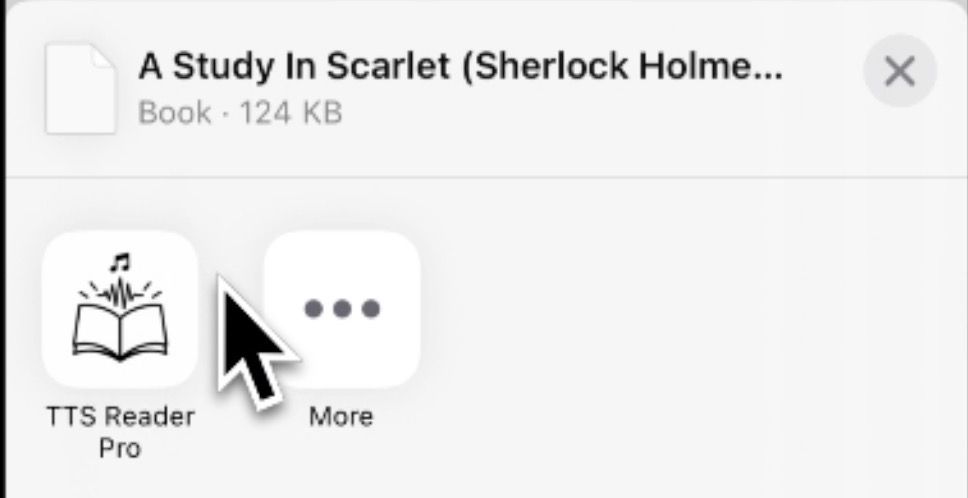
Share articles, documents, or images without manually importing files.

Share content directly to TTS Reader from any app

How to Use

  1. In any app, tap the Share button.

  2. Select TTS Reader Pro from the share sheet.

  3. The content will be processed and added to your library automatically.

  4. You'll be taken directly to the new item to start reading/listening.

Edit Text

Modify the text of segments directly within the app.

Why

  • Correction: Fix errors or typos in imported documents.

  • Customization: Adjust the text to suit your reading or listening preference.

How to Use

  1. In the Listen View, locate the segment you want to edit.

  2. Tap the Edit button of top or bottom.

  3. Select Edit Text.

  4. Make your changes in the dialog and save.

Download Audio (for paid user only)

Download the audio of your documents for offline listening.

Why

  • Offline Access: Listen to your content without an internet connection.

  • External Players: Play the audio in other music or media player apps.

  • Sharing: Share the audio file with others.

  • Continuous Playback: Merges multiple segments into a single audio file for seamless listening.

How to Use

  1. Open the document you want to listen to.

  2. Tap the Download Audio button/icon.

  3. The app will generate and merge the audio segments into a single MP3 file.

  4. Once complete, you can save or share the file.

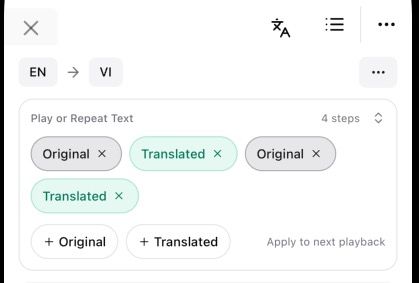
Loop Audio

Repeat audio segments to practice pronunciation or memorize content.

Why

  • Language Learning: Repeat sentences to perfect your pronunciation.

  • Memorization: Loop important information to help commit it to memory.

  • Focus: Stay on a complex section until you fully understand it.

How to Use

  1. Open Translate Mode

  2. Tap the Loop icon (arrows forming a circle).

  3. Configure the number of repetitions in the Loop Settings dialog.

Skip Text

Skip specific text blocks to streamline your listening.

Why

  • Avoid Repetition: Skip over repeated headers, footers, or citations.

  • Focus: Ignore irrelevant sections of a document.

  • Customizable: You control what gets skipped.

How to Use

  1. Open Setting Tab

  2. Tap the Skip Text Filter

  3. Configure in the Skip Settings dialog.

January 21st, 2026

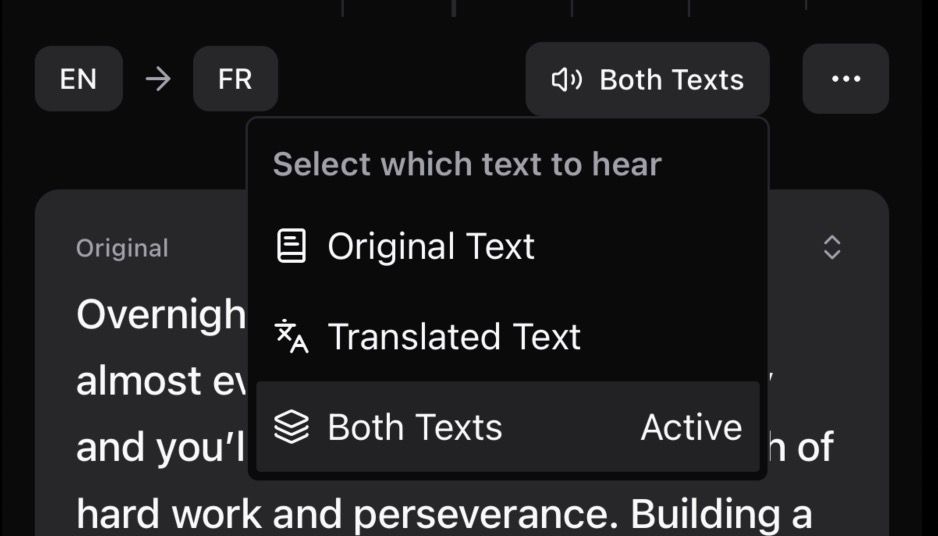
We have introduced a new view allowing you to control exactly what is spoken during playback in Translate View.

Why

There are many great books written in English, but you may not be a native English reader. With this feature, you can listen and follow along comfortably, understand the content, and enjoy books that were previously hard to read.

  • Access more books: Enjoy original English books even if you’re not fully fluent.

  • Stay immersed: Hear the original text, the translation, or both without breaking your reading flow.

  • Read without limits: Don’t restrict yourself to books available in your native language.

How to Use

  1. Navigate to the Translate View.

  2. Tap the Speech Mode button in the top header (displays the current mode and a speaker icon).

  3. Select your desired preference from the menu.

Available Modes

  • Original Text πŸ“–: Reads only the original source text.

  • Translated Text 🌐: Reads only the translated text.

  • Both Texts πŸ“š: Reads the original text first, followed by the translated text.

Voice Configuration

You can assign a distinct voice for translations:

  1. Tap the More Options (...) button in the header.

  2. Select Default Translate Voice to configure the voice for translated text.

Language Selection

You can easily switch between languages using the indicators in the top header:

  • Source Language (Left): Tap to change the language of the original document.

  • Target Language (Right): Tap to change the language you want to translate to.

January 1st, 2026

  1. Select ebook language

  2. Select language translate to

You can set the default language and translate language in the setting for new item

Setting Default Language and Translate Language for new item