Listen in the source and translated language in Translate View
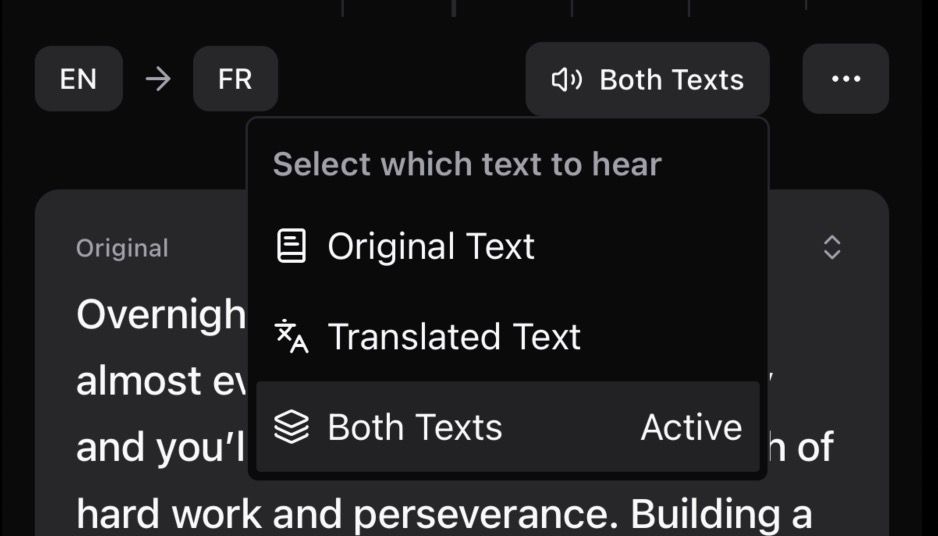
We have introduced a new view allowing you to control exactly what is spoken during playback in Translate View.
Why
There are many great books written in English, but you may not be a native English reader. With this feature, you can listen and follow along comfortably, understand the content, and enjoy books that were previously hard to read.
Access more books: Enjoy original English books even if you’re not fully fluent.
Stay immersed: Hear the original text, the translation, or both without breaking your reading flow.
Read without limits: Don’t restrict yourself to books available in your native language.
How to Use
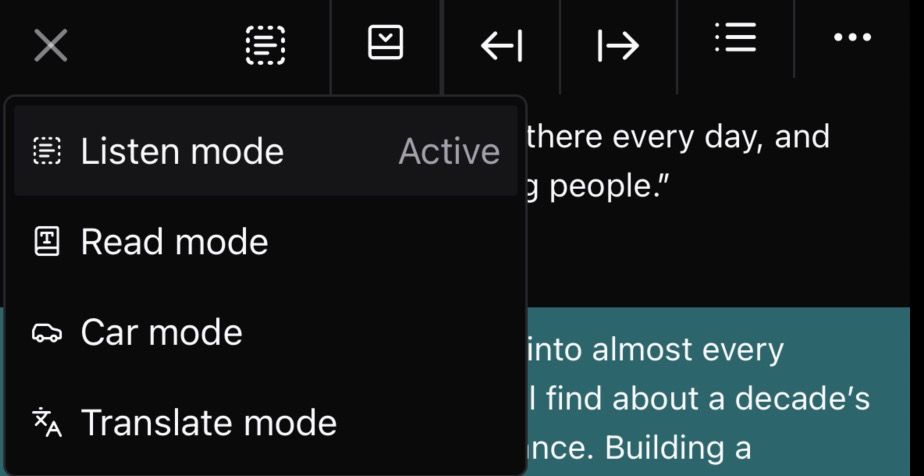
Navigate to the Translate View.
Tap the Speech Mode button in the top header (displays the current mode and a speaker icon).
Select your desired preference from the menu.
Available Modes
Original Text 📖: Reads only the original source text.
Translated Text 🌐: Reads only the translated text.
Both Texts 📚: Reads the original text first, followed by the translated text.
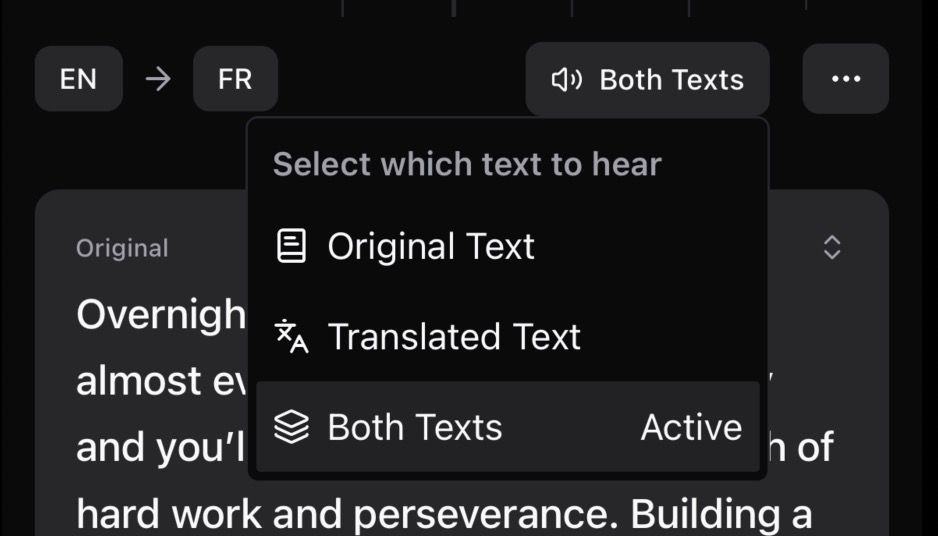
Voice Configuration
You can assign a distinct voice for translations:
Tap the More Options (
...) button in the header.Select Default Translate Voice to configure the voice for translated text.
Language Selection
You can easily switch between languages using the indicators in the top header:
Source Language (Left): Tap to change the language of the original document.
Target Language (Right): Tap to change the language you want to translate to.